Camera roll · iPhone
Auto-match receipts from your camera roll.
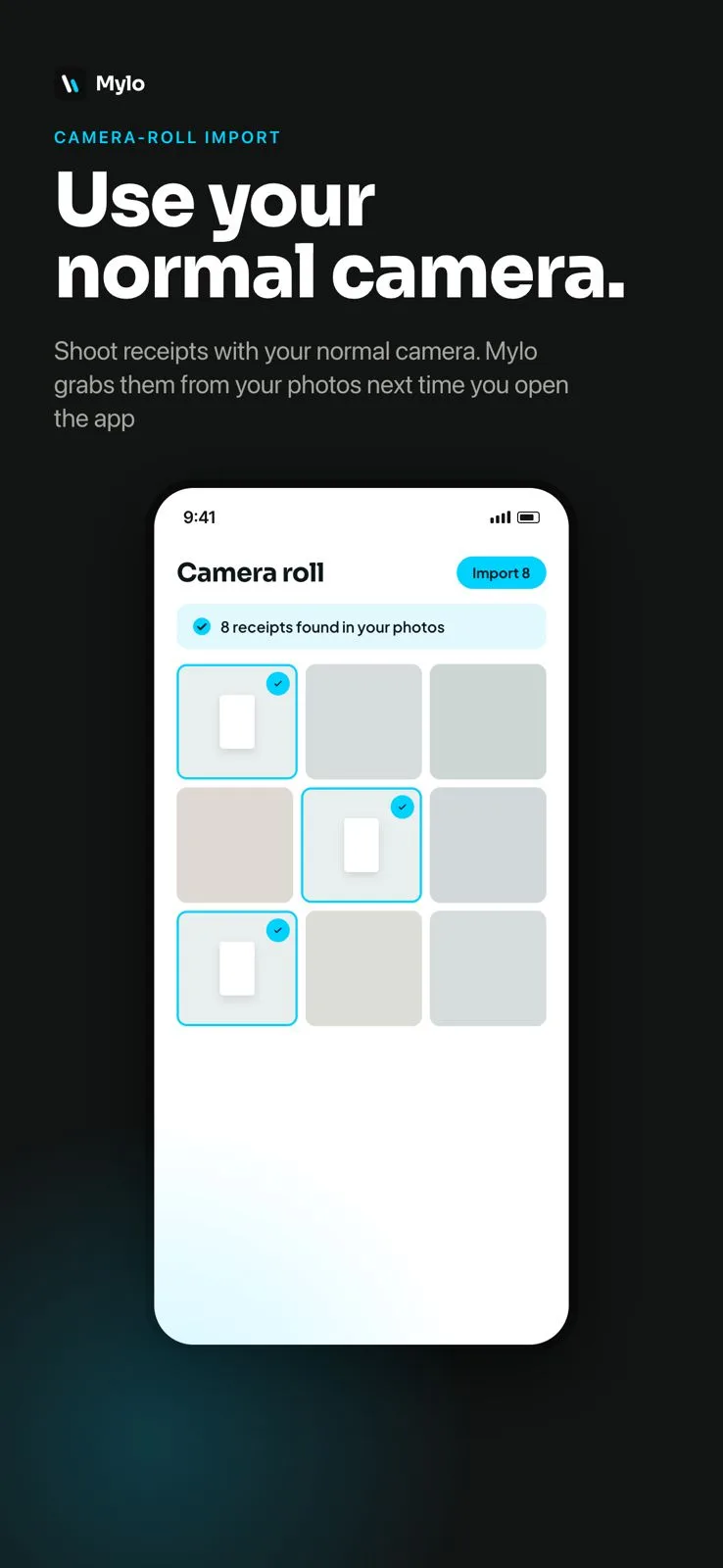
Connect your iPhone camera roll and Mylo uses on-device Apple Intelligence to find receipt photos and match them to your transactions. No manual searching, no uploading, and nothing leaves your phone until you confirm.
How it works
On-device, by design.
When you connect your camera roll, Mylo retrieves your open transactions and searches your device photos for matching receipts. For each transaction, Mylo looks at only three data points:
No receipt image or photo data ever leaves your device until you review and confirm a match. Mylo and your finance team cannot access any detected receipt unless you explicitly approve it.
Setting it up
Five taps, once.
- 1
Open Mylo
Launch the app on your iPhone to get started.
- 2
Go to your profile
Tap your profile icon in the top left corner.
- 3
Find Receipt uploads
Scroll down to the Receipt uploads section.
- 4
Allow photo access
Toggle it on and grant Mylo permission when prompted.
- 5
That is it
Mylo starts scanning your camera roll locally for matches.
This feature needs an iPhone with Apple Intelligence and a recent version of iOS. Other capture methods work on any iPhone, Android device or the web.
Reviewing and confirming
You approve every match.
When Mylo finds a potential receipt match, the next time you open the app you will see a message that says Mylo matched a receipt. From there:
- Tap the match suggestion.
- Review the detected receipt and the transaction it has been matched to.
- Tap Attach to keep the receipt, or Dismiss to skip it.
Only confirmed receipts are uploaded to Mylo and shared with your finance team.
Privacy & security
Your photos stay yours.
Matching happens on your device
Mylo does not send your photos or camera roll to any server during the matching process. The work runs locally with Apple Intelligence.
Mylo only looks for what it needs
It checks photos against a transaction list it already has, by merchant name, date and amount, and nothing more.
You are always in control
No receipt is uploaded or shared until you review and confirm it. Neither Mylo nor your finance team can see a receipt unless you approve the match.
Disconnect any time
Go to your profile icon, open Receipt uploads, and toggle off Find receipts in my photo library.
Frequently asked questions
Good questions, answered.
Does Mylo scan all of my photos?
No. Mylo only looks at photos taken shortly after a transaction that needs a receipt. It asks your device Apple Intelligence model whether they contain the expected amount, date and merchant name. Anything it finds is held for your confirmation the next time you open the app, and nothing is uploaded to Mylo until you confirm.
Can my employer or finance team see my photos?
No. Mylo and your team only gain access to a receipt after you personally confirm a match. Unmatched or dismissed photos are never visible to anyone but you.
What if a receipt is matched incorrectly?
Tap Dismiss on the suggested match. The photo will not be uploaded, and you can manually attach the correct receipt if you need to.
Does this work on Android?
Automatic camera roll matching is available on iPhone only for now, because it relies on Apple Intelligence running on the device. Android support may follow. The rest of Mylo already works on iOS, Android and the web.
Do I need to keep the app open for it to find receipts?
No. Mylo can surface receipt matches in the background and let you know when a match is ready to review.
Will a receipt be matched to a transaction that already has one?
No. Mylo only matches transactions that need a receipt and do not already have one attached.
Stop hunting for receipts.
Connect your camera roll once and let Mylo file the rest.