Expense reports · Travel
Travel expense reports on autopilot.
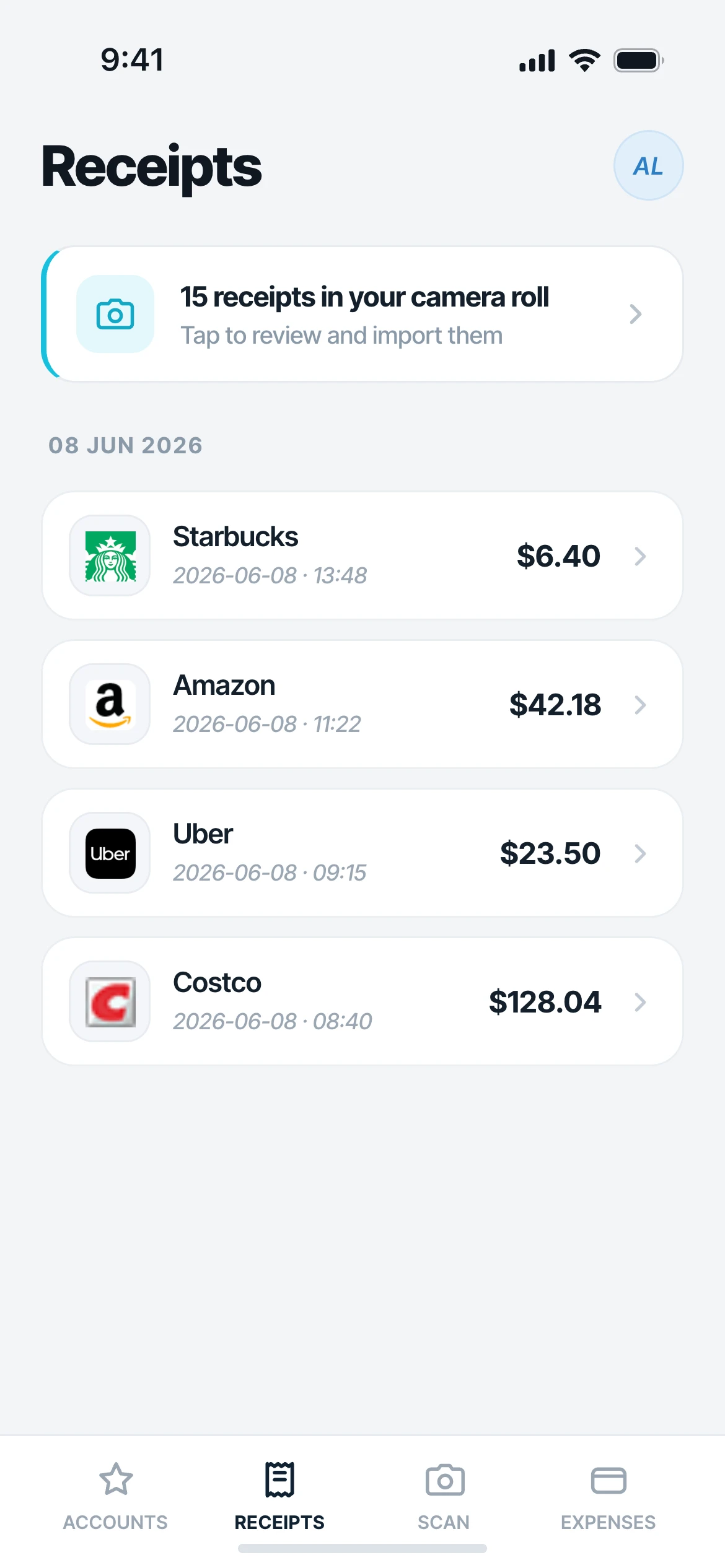
Mylo notices when you are traveling and gathers the trip for you. Every out-of-pocket card charge and un-expensed receipt from the trip flows into a draft report on its own, so it is written up before you are back at your desk.


30-day free trial. No card required, cancel anytime.
How it works
A trip, written up on its own.
Mylo works out the trip and does the collecting, matching and categorizing for you.
-
Step 1
Mylo spots the trip
A flight, a string of rideshares, a hotel booking: Mylo recognizes travel spend and works out the trip and its dates for you. You do not set anything.
-
Step 2
The spend gathers itself
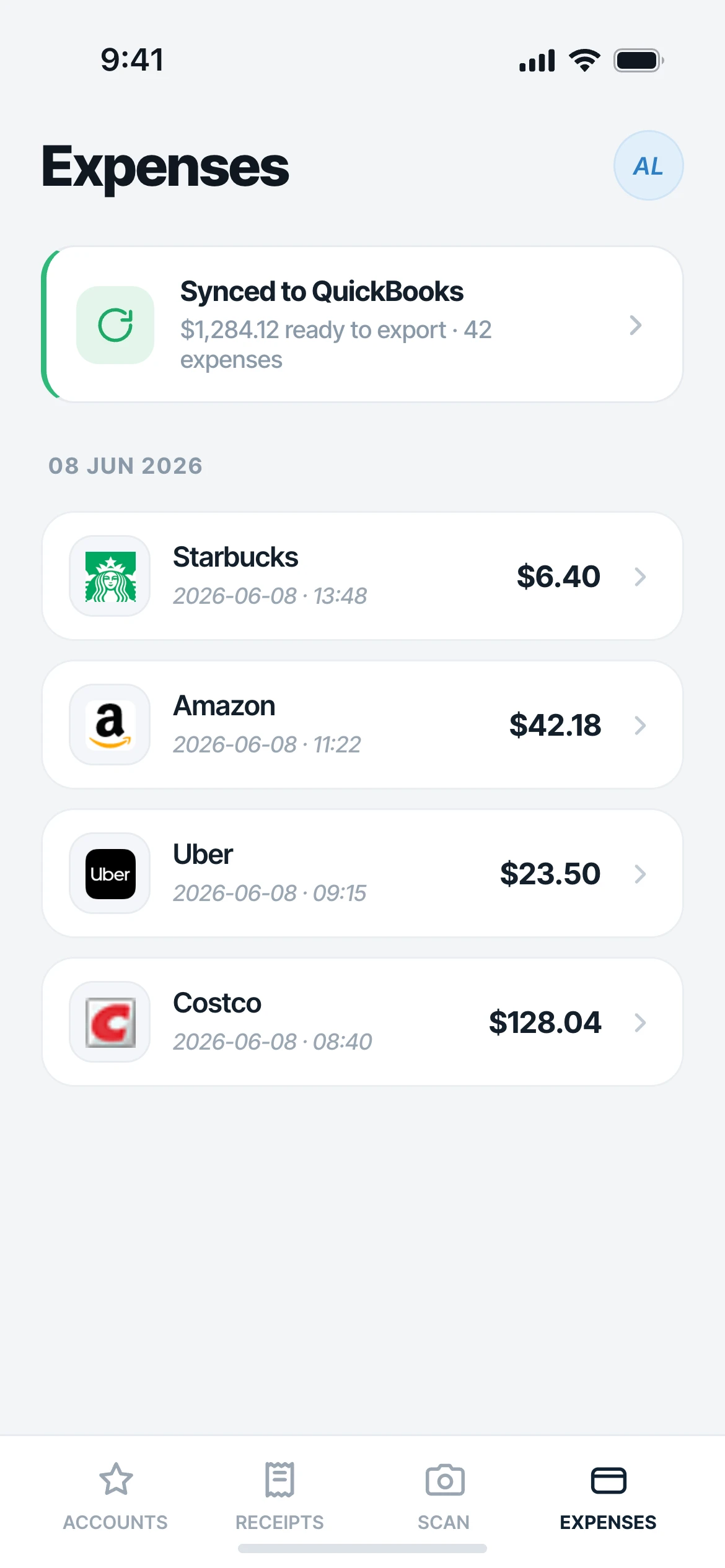
Every out-of-pocket card charge and un-expensed receipt from the trip is pulled into a draft report automatically.
-
Step 3
Review and sync
Check the report, tweak the dates if you want, approve, and it syncs to QuickBooks with every receipt attached.
Land, and the trip has already written itself up.
Why it matters
Stop writing up trips by hand.
The report builds itself
No collecting receipts or rebuilding a trip from memory. The report is waiting when you land.
Nothing missed
Because Mylo already captured the receipts and matched the card charges, everything from the trip is there.
Yours to fine-tune
Mylo sets the dates from your travel spend. If a trip ran longer or shorter, adjust the window and the report re-syncs to match.
Only what belongs
Travel mode gathers your out-of-pocket spend and un-expensed receipts, and leaves out recurring subscriptions and anything already expensed.
The moment you travel
Mylo notices, and starts the report
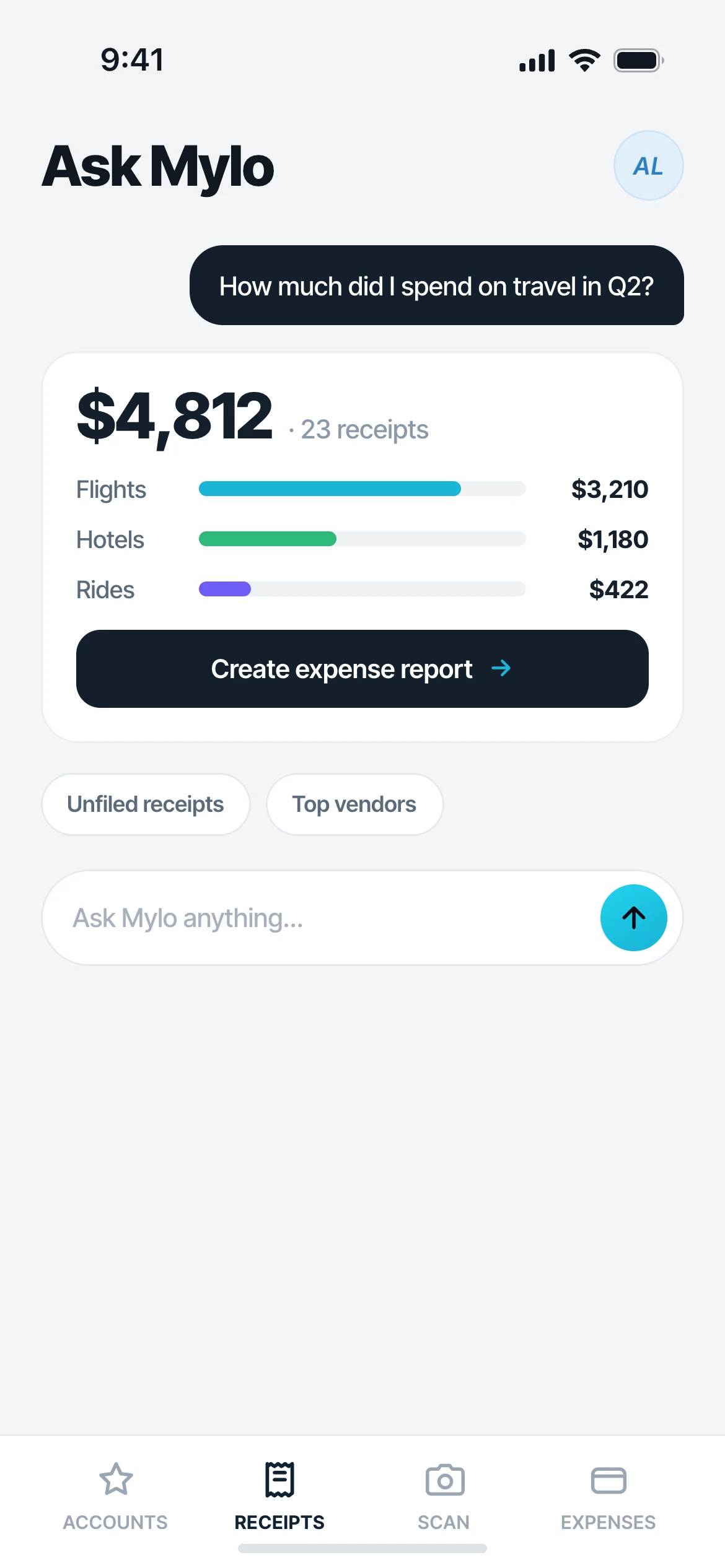
A flight or a run of rideshares is all it takes. Mylo recognizes the trip, works out the dates, and gathers the spend as it happens, matched to the card that paid. By the time you land there is nothing left to dig up.
- Trips detected from your flight, rideshare and hotel spend
- Receipts pulled from your inbox automatically
- Card charges matched through Plaid
Back at your desk
Approve and send in a tap
Open the trip report, glance over what Mylo gathered, and approve. It syncs to QuickBooks already categorized and with every receipt attached, or exports as a clean expense report.
Works with what you use
Fits your accounting workflow.
Accounting
QuickBooks
Each entry
Receipt attached
More integrations
On the way
FAQ
Questions, answered.
What is Travel mode?
Travel mode turns a trip into a finished expense report on its own. Mylo detects when you are traveling from your flight, rideshare and hotel spend, works out the dates, and pulls the trip out-of-pocket charges and un-expensed receipts into a draft report for you to review.
What does it pull into the report?
Your out-of-pocket card charges and any un-expensed receipts that fall inside the trip dates. It leaves out recurring subscriptions and anything you have already expensed, so the report only holds what belongs on it.
Can I change the trip dates?
Mylo sets the dates from your travel spend, so you do not have to. If you want to fine-tune the window, edit it and the report re-syncs, adding newly in-range spend and removing anything that no longer fits.
Are the receipts attached?
Yes. Each expense in the report carries its matched receipt, so your backup is in place when you submit or file it.
Does it sync to QuickBooks?
Once you approve the report, it syncs to QuickBooks already categorized and with the receipts attached.
Keep exploring
Let your next trip write itself up.
Set up in a few minutes, on the cards you already carry.
30-day free trial. No card required, cancel anytime.