Features
Expenses
By the Mylo team · Last updated June 30, 2026
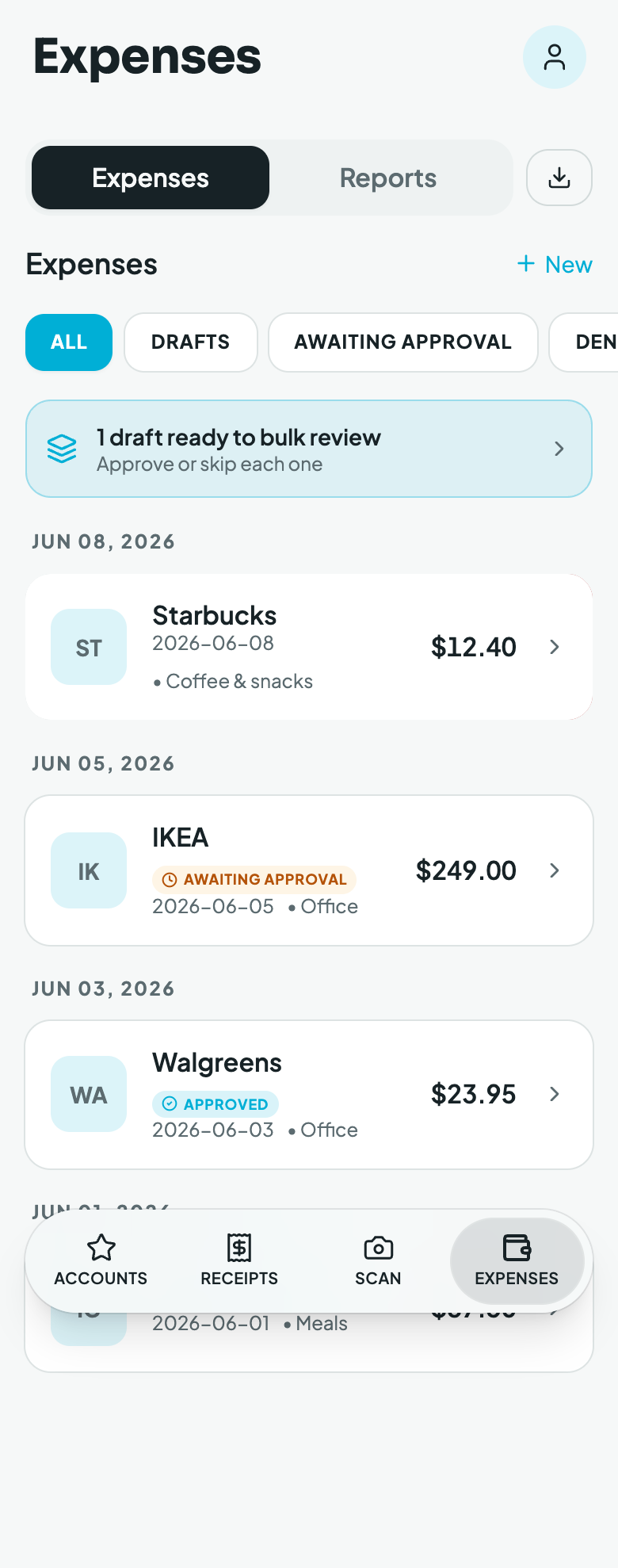
An expense is the reportable line item, the thing that gets approved and exported. Every receipt or card charge becomes an expense, which moves through a simple lifecycle:
draft  →  submitted  →  approved  →  exported
                    ↘  denied  (edit → back to draft → resubmit)
- draft: being edited; private to the person who owns it (an accountant does not see your drafts).
- submitted: awaiting approval; now visible to approvers.
- approved: signed off; ready to export.
- exported: sent to QuickBooks.
- denied: an approver rejected it with a required reason; editing it returns it to draft so it can be fixed and resubmitted, and the reason stays on the record.
An expense can be created three ways: from a receipt (the usual path), manually, or from a bank/card transaction. Open one to edit its fields:
- Merchant, amount, and currency (amounts are per‑currency and never FX‑summed),
- Date,
- Category: a two‑level tree (a parent like Travel → a line item like Flights),
- Description,
- Payment method: out of pocket, corporate card, or a custom label your org has defined,
- Attachments: the receipt image(s) / PDF, shown as a swipeable carousel,
- optionally, the expense report to group it under.
Then tap Submit.
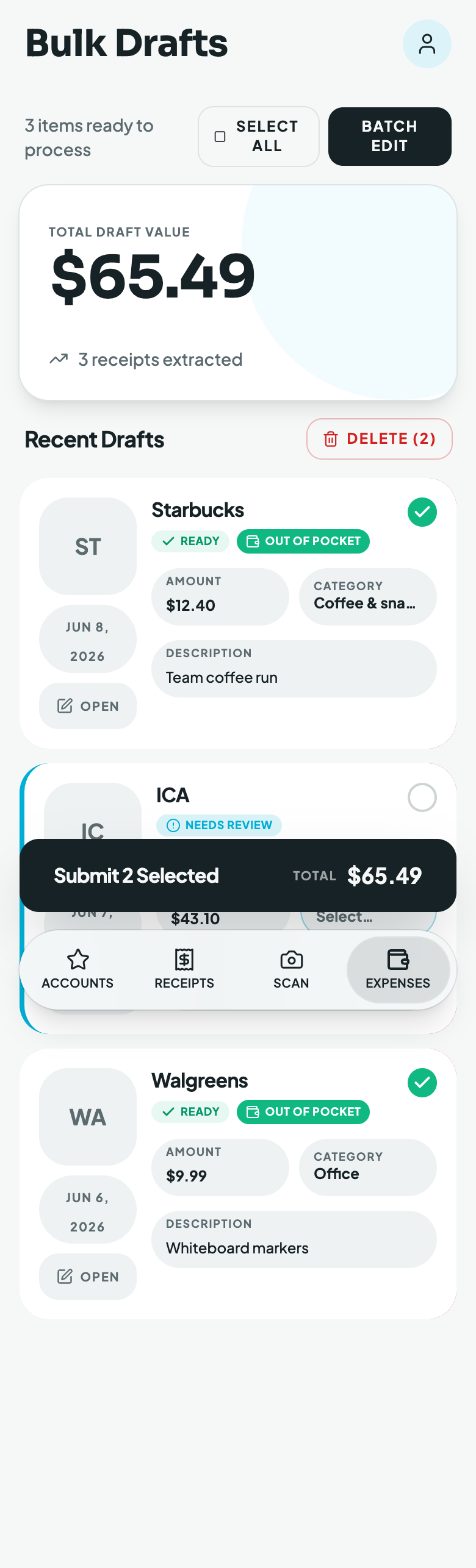
Working in bulk. Two screens speed up volume:
- Bulk drafts (Review drafts): every draft in one scrolling list with inline editable amount, category, description, date, and payment method, a per‑row include/exclude toggle, and Submit all at the bottom.
- Bulk add: enter several expenses at once in a grid (amount, currency, date, merchant), optionally grouping them into a report.
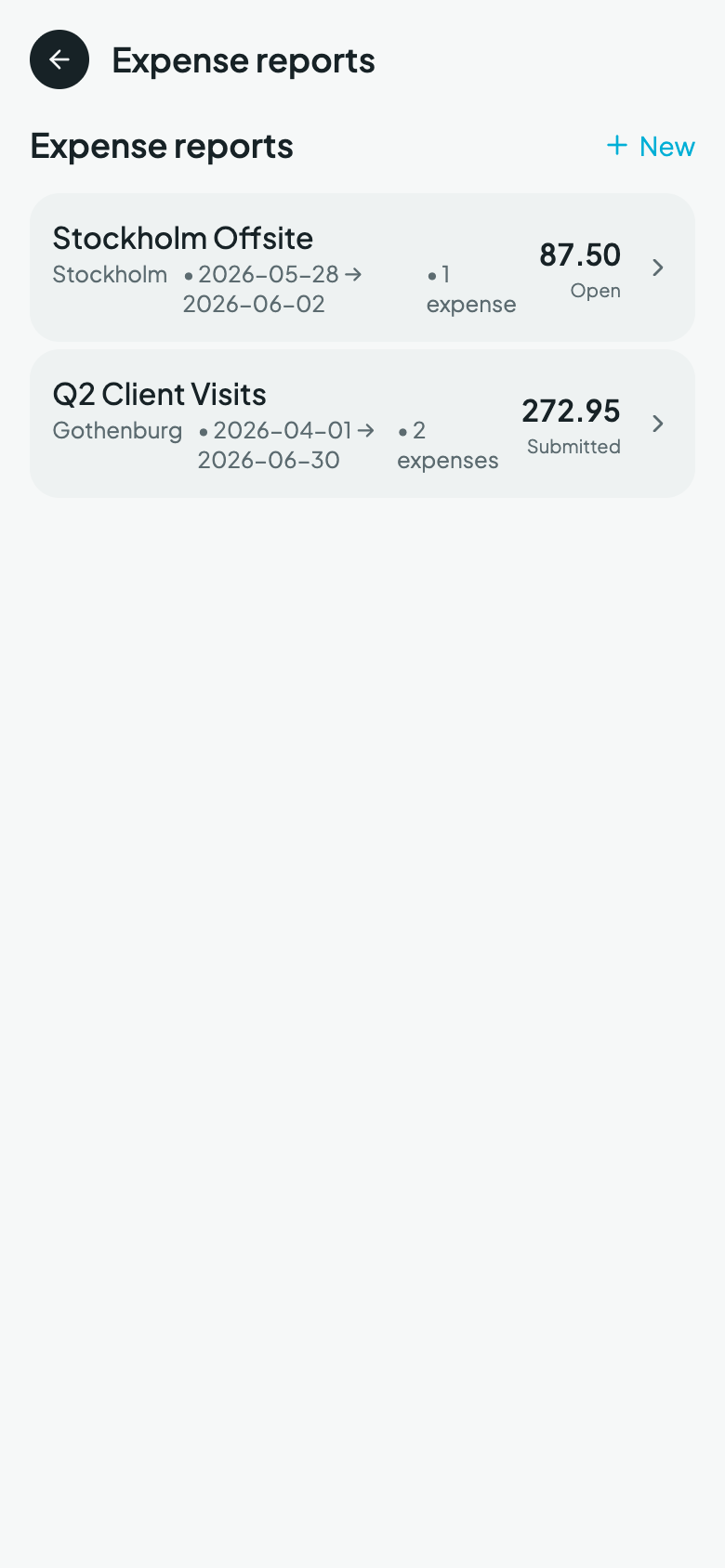
Expense reports
Group related expenses into a named report, a trip, a project, a client visit. A report has its own status (open → submitted → closed), and its official total reflects only the approved expenses in it (drafts and denied items don't count toward the total, though you can still see them attached while the report is open).