Features
Receipts
By the Mylo team · Last updated June 30, 2026
A receipt is the source document for a purchase. Mylo collects them several ways, then reads each one with AI, pulling out the merchant, date, currency, total, tax, line items, and a suggested category, and creates a draft expense from it. You never retype a receipt.
The capture paths:
- Scan or upload: snap a photo in the app, or upload a saved image/PDF from your device. Works on every platform.
- Email capture: connect Gmail, Outlook, or iCloud and Mylo finds receipts in your inbox automatically, on an ongoing basis.
- Camera‑roll auto‑import: on iPhone and Android, Mylo finds receipts already sitting in your phone's photo library.
- Text‑in: text a photo of a receipt to Mylo's number (where enabled).
Everything after capture is identical no matter which path brought the receipt in: the same AI reads it, and the same draft expense comes out.
Scan or upload a receipt
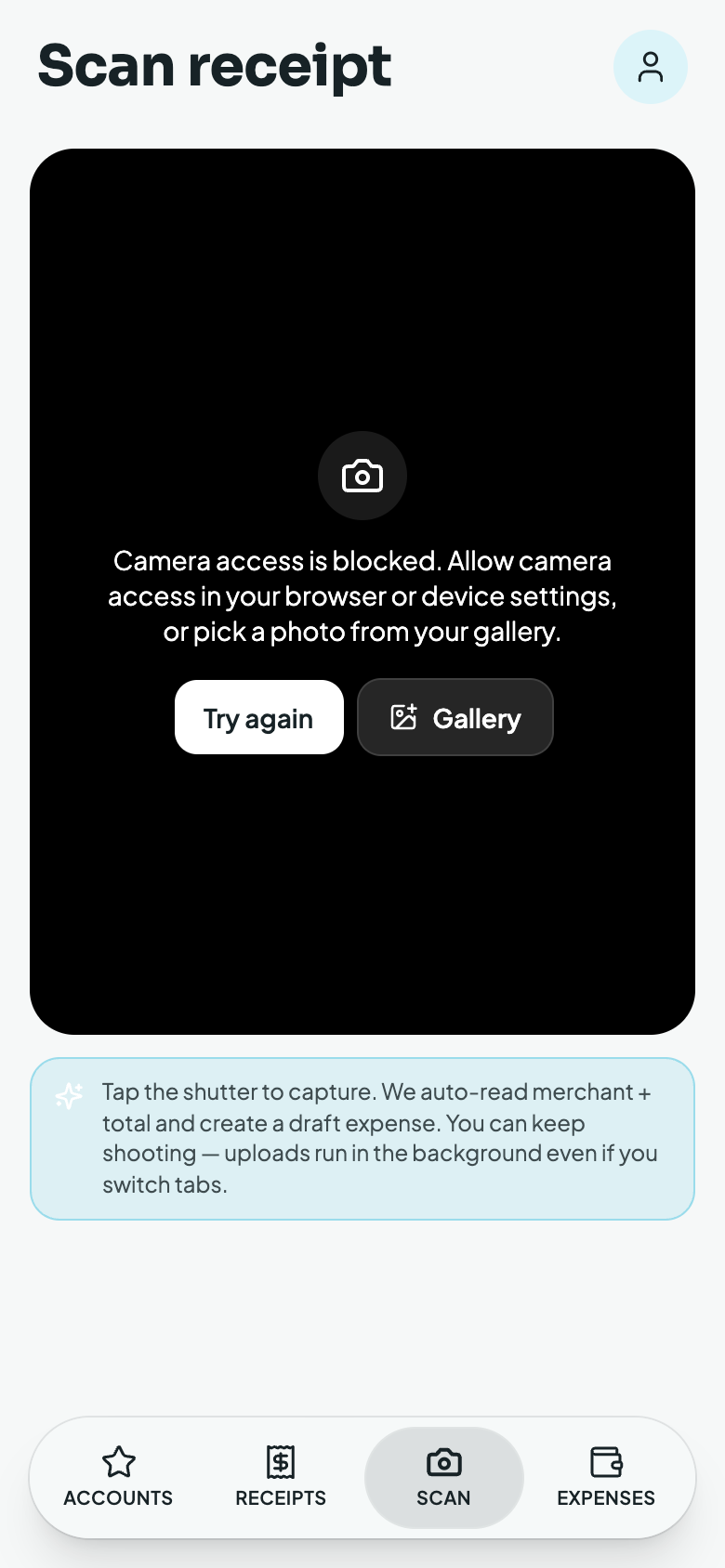
Tap Scan in the bottom navigation. You get a camera viewfinder with a framing overlay. Tap the shutter and Mylo:
- adds the photo to a live upload queue shown below the camera,
- uploads and reads it in the background, the row cycles through "Reading… → Draft #42",
- lets you keep shooting more receipts without waiting; uploads continue even if you switch tabs or navigate away.
Already have the receipt as a file? You can always upload one instead of taking a new photo, a saved photo, a screenshot, or a PDF. Pick from your gallery on mobile, or drag‑and‑drop / Choose images on desktop (JPEG, PNG, HEIC, WebP, PDF). Uploaded files run through the exact same read‑and‑draft pipeline as a live scan. Tap a finished row to open the draft and edit it, or swipe it away to discard.
Email capture
In Settings → Connected emails, connect one or more mailboxes, Gmail, Outlook, or iCloud (Gmail and Outlook use secure sign‑in; iCloud connects with an app‑specific password). Mylo scans for receipts (a 90‑day backfill on first connect, then ongoing) and turns each one into a receipt + draft expense. You can connect several mailboxes at once (e.g. a personal Gmail and a work Outlook).
Camera‑roll auto‑import (iPhone & Android)
Turn on Find receipts in my Photos and Mylo scans your photo library on the device, detects the receipts, and collects them into a review queue. Nothing is uploaded during the scan; a photo only leaves your phone when you tap Import on it. On the review screen each receipt shows a thumbnail plus the merchant, amount, and date Mylo read, with Import / Dismiss per row and an Import all button.
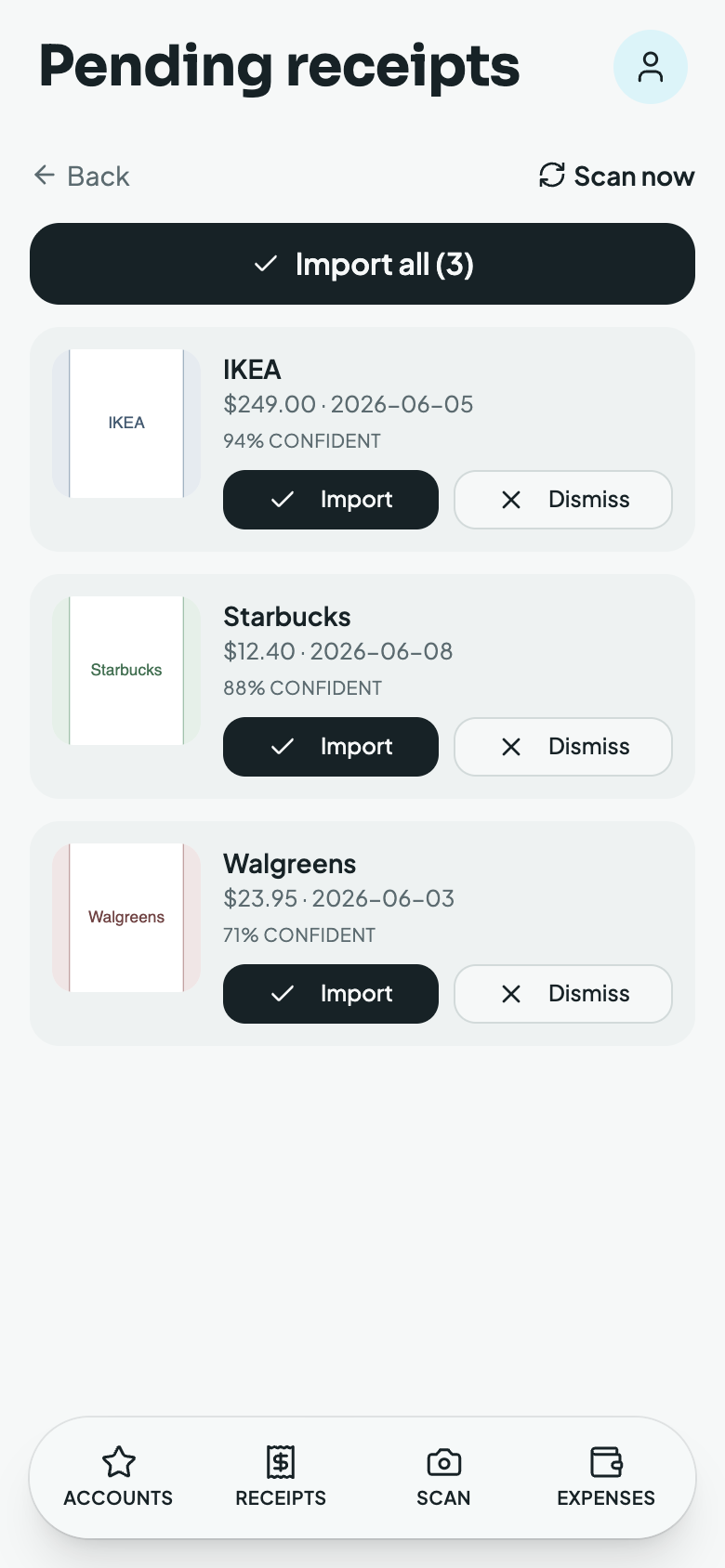
Camera‑roll auto‑detection runs on iPhone and Android, all detection happens on‑device, and nothing is uploaded until you tap Import. On the web, use Scan; the reading and matching that follow are identical. There's a dedicated walkthrough in the camera‑roll post.
What the AI reads
Whichever path a receipt arrives through, Mylo's parser extracts: merchant, date, time, currency, total, tax breakdown, line items (name / quantity / unit price), the payment method and card last‑4 when present, and a type classification (purchase / return / subscription / not‑a‑receipt). On the Receipts screen you can full‑text search and filter by date range, merchant, and amount, and open any receipt to see its itemization and attachments.