How-to guides
Submit → approve / deny an expense
By the Mylo team · Last updated June 30, 2026
- Employee: open a draft, check the details, and tap Submit. It moves to submitted and appears in the approval queue.
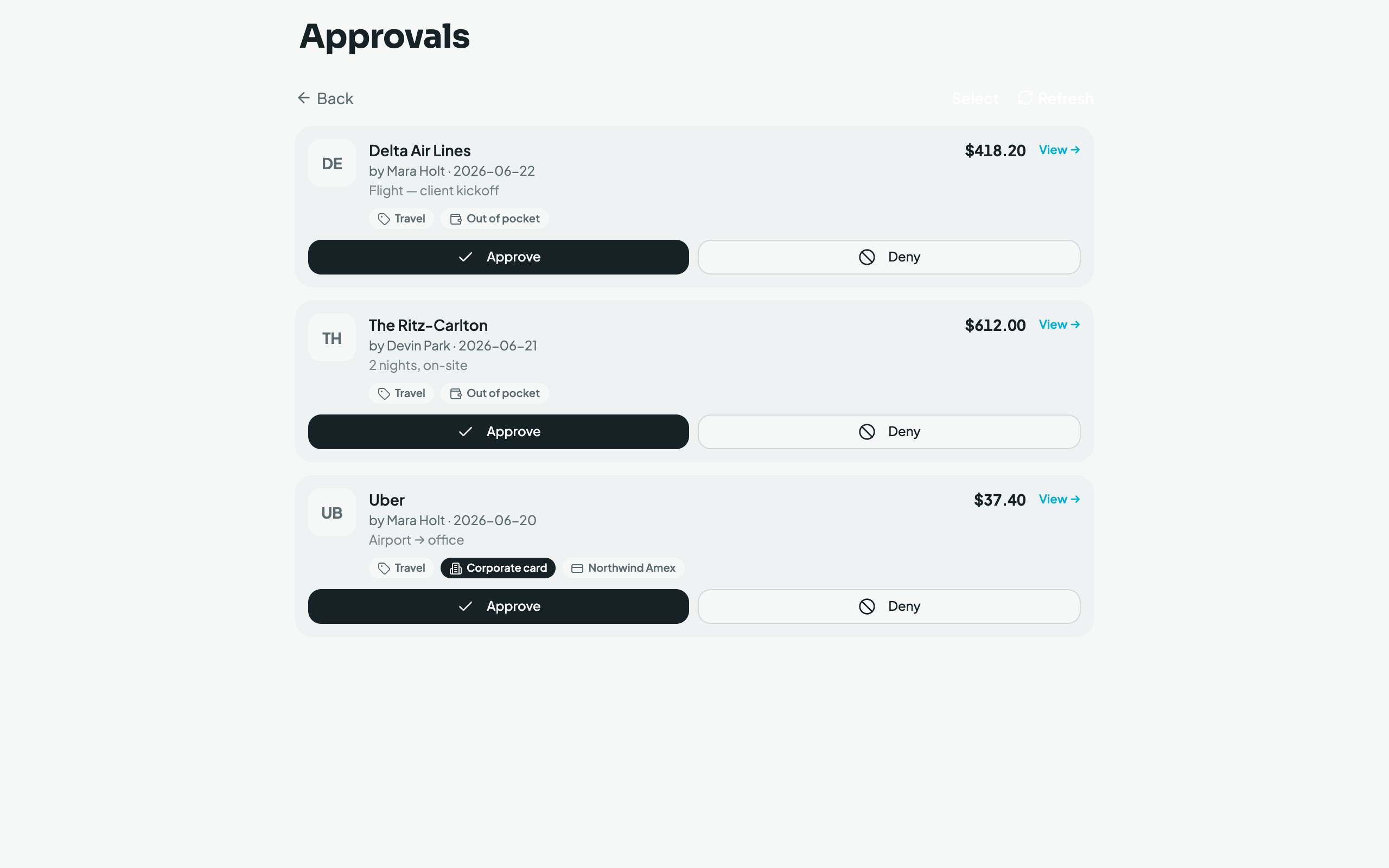
- Reviewer (owner, admin, or the connected accountant): open the approval queue. Tap Approve to sign off, or Deny and enter a reason.
- A denied expense returns to the employee with the reason attached; they edit and resubmit. Approve/deny can be done in bulk via Select mode.
The accountant's approval queue (desktop), scoped to the currently selected client: